How to Translate PDF, EPUB, Word, TXT and Markdown Files Offline
A translated document needs to be readable as a document, not just as a wall of copied text. The useful questions are: which parts can be translated, what should stay untouched, how can you see progress, and what must you check in the saved file?
Seam now accepts PDF, EPUB, DOCX, TXT and Markdown files alongside pasted text. It copies the source into its local workspace, translates text in smaller sections with a model on your computer, and lets you save a new file in the original format. The source is not sent to a translation service. A model must be downloaded first; PDF layout resources may also need a one-time download.
Start with the right source file
Before starting a long job, open the original and make sure the text can be selected. A PDF that is only a picture of a page needs OCR first. If the letters cannot be selected, the translator cannot recover the words from the image. Keep your untouched original, especially for contracts, research papers and manuscripts.
| File | What the translated copy keeps | What to check |
|---|---|---|
| Seam aims to retain page layout and gives you a preview of each completed page. | Longer sentences, columns, tables, captions, equations and fonts. | |
| EPUB | Book chapters, links, images and other non-text files stay inside a new EPUB. | Chapter order, navigation, notes and line wrapping in your reader. |
| Word (.docx) | The document package, paragraphs, tables and images remain in a new DOCX. | Page breaks, tables, headers and mixed bold or italic formatting. |
| TXT | A new plain-text file in the original text encoding. | Paragraph breaks and names that need consistent spelling. |
| Markdown | Headings, links, code blocks and Markdown markers stay in a new text file. | Tables, inline formatting and a rendered preview of the final Markdown. |
Layout is an aim, not a guarantee
Seam cannot promise a 100% match to the original layout. A short English sentence may become a much longer sentence in another language. Text can reflow, move around an image or overflow a narrow table cell. Always open the finished file in a PDF viewer, EPUB reader or Word processor and inspect it before sharing.
Translate in Seam
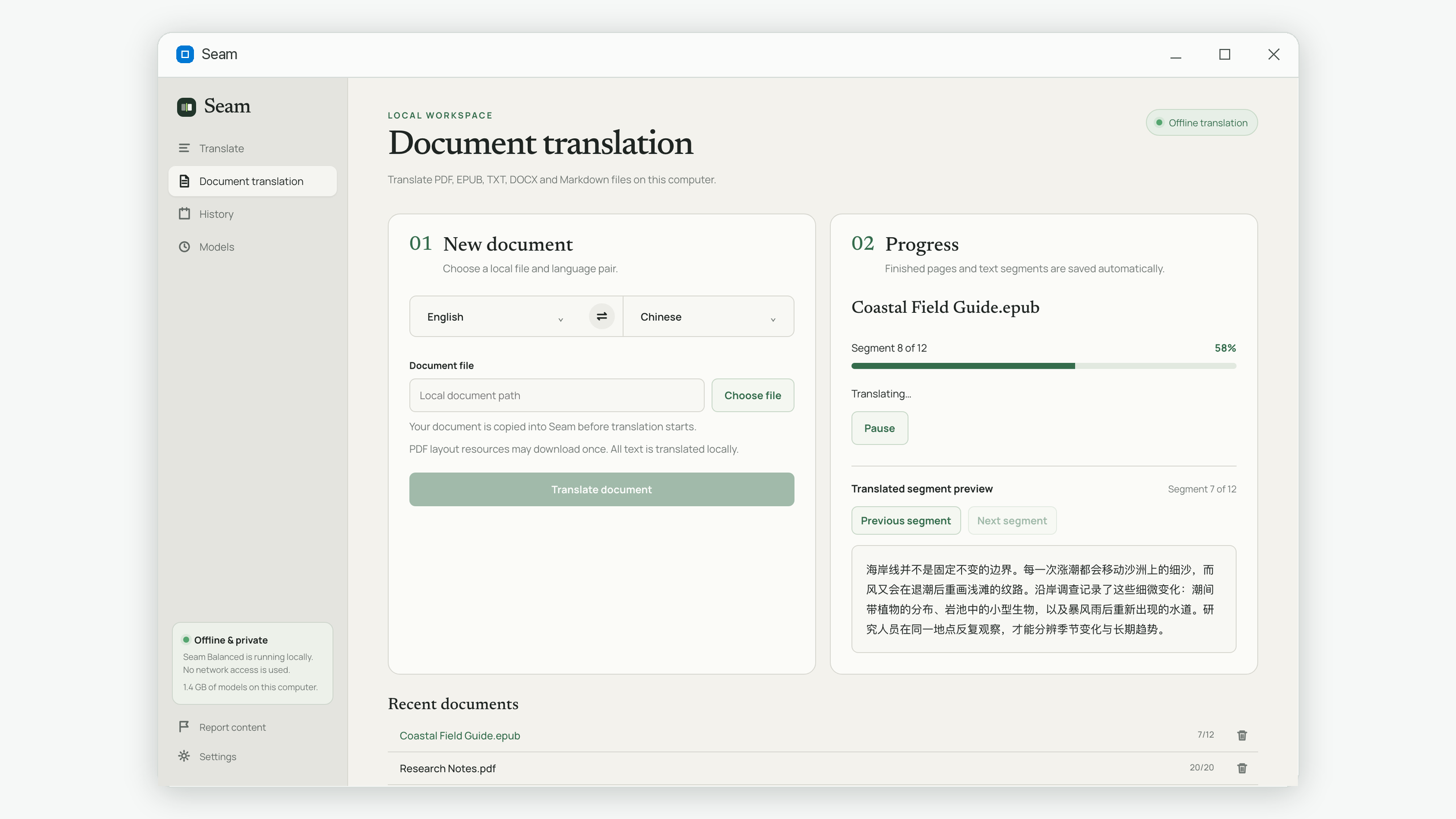
- Open Document translation in the left menu.
- Choose the source and target languages, then select your PDF, EPUB, TXT, DOCX or Markdown file.
- Start the job. Seam saves a local copy before translation begins and works through one document at a time.
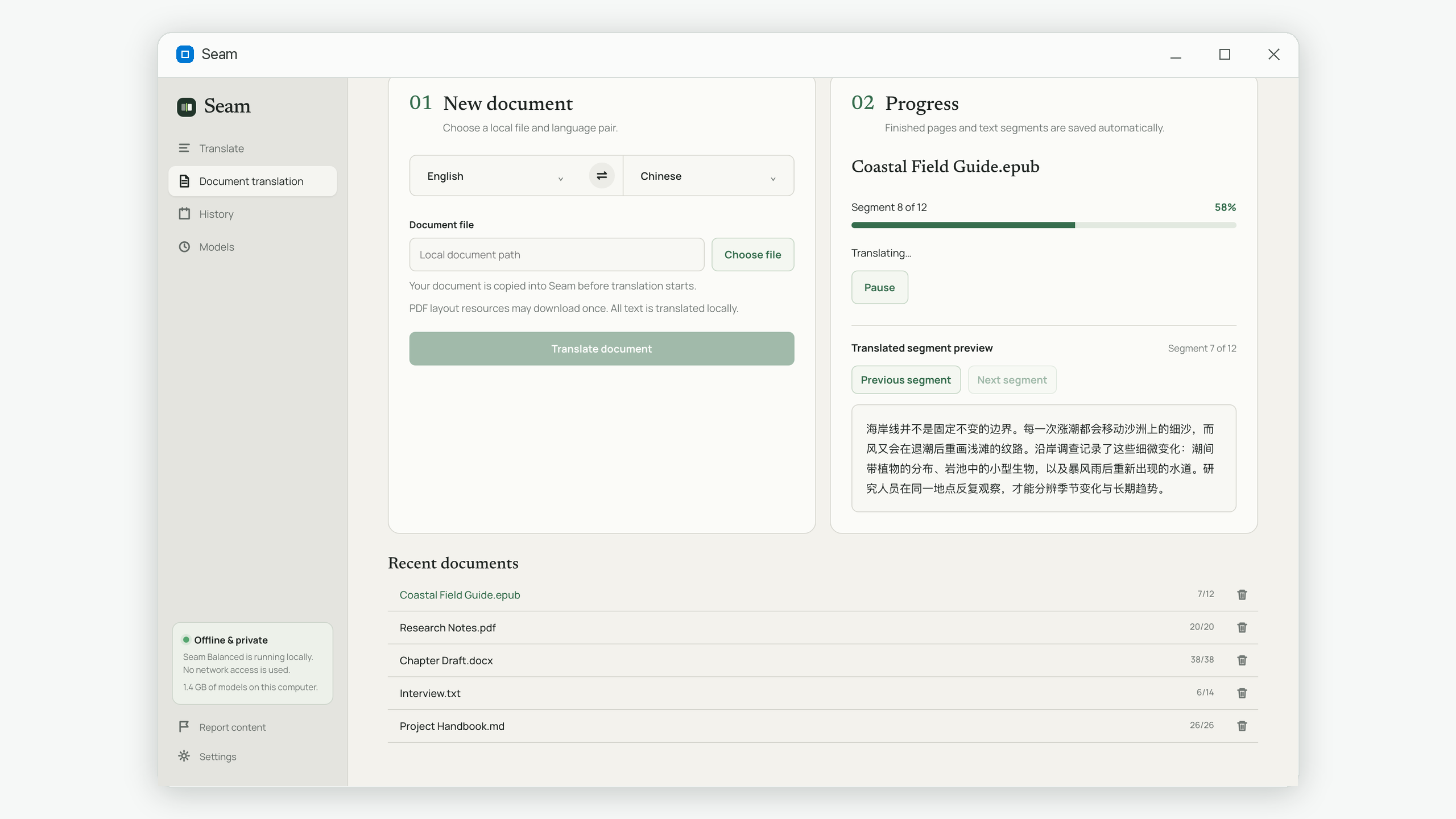
- Watch the progress. Completed PDF pages appear as page previews. For the other four formats, the finished text segments can be read immediately.
- If you need to stop, pause the job. You can return through Recent documents and resume later, including after reopening Seam.
- When complete, choose Save translated document. Seam writes a new file with the source format's extension and leaves your original alone.
Choose a model before starting a long job
Seam offers three translation models, and for a document the choice matters more than it does for a paragraph. A long file multiplies whatever speed difference exists between them, so picking the model is really a decision about how long you are willing to leave the computer working.
- Swift — the fastest and lightest. Use it when you need to find out what a document says: an incoming file in a language you do not read, a first pass over reference material, or a check of whether a source is worth translating properly at all.
- Balanced — the sensible default for most real documents. It keeps context across a long text better than Swift, which matters when terminology and tone need to stay consistent from chapter to chapter.
- Pro — the highest fidelity and the slowest. Worth the wait for prose where phrasing carries weight: material headed for publication, client-facing documents, or anything a reader will judge on its writing.
Speed depends on your computer, the model and the length of the file, so no fixed estimate is meaningful here. The practical approach is to measure rather than guess: start the job, watch how long the first few sections take, and multiply. The progress panel shows which section is running out of the total, which is enough to extrapolate after a minute or two.
If a long job is going to run for a while, remember that it survives being interrupted. You do not need to keep the computer awake and untouched until it finishes — completed sections are already saved, and closing Seam mid-run costs you only the section that was in progress.
When a document is the wrong tool for the job
Document translation suits files whose text runs in readable order. Some documents do not, and recognizing them in advance saves a long run that produces something you cannot use.
- Scanned or image-only PDFs. There is no text to read, only a picture of text. Run OCR first, check what it recognized, then translate the searchable result.
- Heavily designed pages. Magazine layouts, brochures and slide-style PDFs place text in boxes whose reading order is visual rather than sequential. Expect the translation to be readable but the arrangement to drift.
- Equation-dense papers. Formulas are not prose and should not be translated as prose. For academic material, see how to translate a research paper without breaking citations or equations, which covers protecting the parts that must survive untouched.
- DOCX files with tracked changes or comments. Accept or reject revisions and resolve comments in a copy first. Translating a document that is still mid-revision produces a file nobody can review cleanly.
- Files where one term must never vary. If a contract or manual depends on a fixed glossary, settle the terminology first — see building a translation glossary — and search the saved result for the approved forms afterward.
Use the preview to catch problems early
A preview is useful for checking the language pair and whether technical terms are being rendered sensibly before a long job finishes. For EPUB, Word, TXT and Markdown, Seam shows a completed text segment. Use Previous and Next to review earlier segments, or Follow latest to return to the newest one. For PDF, open a completed page preview and look for clipping or misplaced text.
The text preview is deliberately plain. It lets you read the translated words while the job continues; the final EPUB or DOCX is where you inspect chapter styling, images and page breaks. Do not treat a readable preview as proof that every part of the file layout survived.
Run a short final review
Open the source and the translated file side by side. The review below takes a few minutes and catches the failures that matter — missing content and broken layout — without requiring you to read the whole translation.
- The original file is untouched and still where you left it.
- The beginning, middle and end all have content — no section came out empty or truncated.
- Headings, chapters and page or section numbering run in the expected order.
- Tables keep their rows and columns, and no cell has overflowed or been clipped.
- Figures, captions and the text referring to them still line up.
- Footnotes, endnotes and cross-references point where they did before.
- Links still work, and link text was translated while the URLs were not.
- Names, dates, quantities, units and identifiers match the source exactly.
- Terminology that must stay fixed is used consistently throughout.
- Code blocks, commands and file paths were left as-is rather than translated.
- A bilingual subject reviewer has checked anything headed for publication or a consequential decision.
Then open the result the way your readers will. For EPUB, load it in the reading app your audience actually uses. For Markdown, render it rather than judging the raw text. For Word, check headers, footers and tables in a word processor. For PDF, compare the difficult pages against the original visually. A translated file can pass every check above and still look wrong in the reader where it lands.
This review is part of the workflow, not a sign that the job failed. Machine translation of a formatted document has two separate failure modes — the words and the layout — and only the second one is visible at a glance.
Common questions
Can I translate a scanned PDF?
An image-only page has no readable text for Seam to translate. Run OCR and check the recognized text first, then translate the searchable PDF.
Will pausing lose completed work?
No. Completed pages or text segments are saved locally. The current unfinished section may need another attempt when you resume.
Is the saved file identical to the original?
It has the same file format, but its layout is not guaranteed to match 100%. Different sentence lengths and complex formatting can change the appearance. Review the saved copy.
Do I need an internet connection?
Download a local translation model first. PDF layout resources may download once when you first use the PDF workflow. The text itself is translated on your computer.
Which model should I use for a long document?
Balanced suits most real documents. Use Swift when you mainly need to find out what a file says, and Pro when the phrasing matters because the text will be published or sent to a client. You can switch models between jobs.
Can I queue several files at once?
Seam translates one document at a time, so progress stays predictable and a long job cannot be slowed down by competing work. Start the next file when the current one finishes; earlier jobs stay available under Recent documents.
Can I keep using the computer while it translates?
Yes. Translation runs in the background and completed sections are saved as it goes, so ordinary work alongside it is fine. Heavy tasks competing for the same resources will slow the job down rather than break it.
Seam translates long text and documents on your own computer. Save a translated copy, then check its layout before you use it. View Seam on the Microsoft Store.